Build a Data Connector App
Build an app that moves data through the Procore REST API, acting as a signed-in user and, when it needs to, as a service account.
Overview
The Data Connector capability moves data between Procore and your platforms through the Procore REST API. It has two components:
- User Level Authentication — the OAuth 2.0 Authorization Code flow. Your app acts as a signed-in user, limited to that user’s permissions.
- Service Account Authentication — a Developer Managed Service Account (DMSA) and the OAuth 2.0 Client Credentials flow, for work with nobody signed in. It’s added on top of User Level Authentication, never alone.
Review the API Usage Guidelines, including rate limits, before you build.
How Your App Authenticates
Start with User Level Authentication. Add Service Account Authentication when your app also runs without a signed-in user, such as a nightly sync or a webhook handler.
Two credential pairs serve both flows: one for your Developer Sandbox, and one for production, which also covers the Monthly Sandbox and On-Demand Sandboxes. There are no separate service account credentials.
They’re on your app’s Credentials tab. Sandbox credentials appear when a version carries a Data Connector; production credentials appear after you promote one. See OAuth Credentials Management.
Resolve companies and projects as the user, not the service account. The two see different things. Use user-level calls to find what a person can reach, then use the service account for background work on those resources. See Choose an Authentication Method.
Create a Version and Add Components
- Open your app in the Developer Portal and select Create Version.
- Under Components, select Edit Components.
- In the Data Connector group, select User Level Authentication. If your app also runs without a signed-in user, select Service Account Authentication too.
- Select Save.
A new version starts as a copy of your latest one, with a suggested version number you can edit. User Level Authentication shows No Config. Needed, because the user’s own permissions govern access. Service Account Authentication shows Not Configured until you set its permissions.
A Data Connector carried over from a previous version cannot be removed. Decide what Procore access your app needs before you promote a version.
Set Service Account Permissions
The service account can reach only what you grant here.
- Select Manage on the Service Account Authentication row. If it’s already configured, select Edit Configuration.
- Under Permissions, on the Company Level and Project Level tabs, set each tool your app needs to Read-only, Standard, or Admin. At least one tool must be above None.
- Select Save Configuration.
Grant the narrowest set that works. A company administrator reviews these permissions at install, and customers decline apps that ask for more than they need.
For what each level allows, see the User Permissions Matrix. For how permissions behave across app updates, see Developer Managed Service Accounts (DMSA).
Define Setup Instructions and Post-Installation Notes
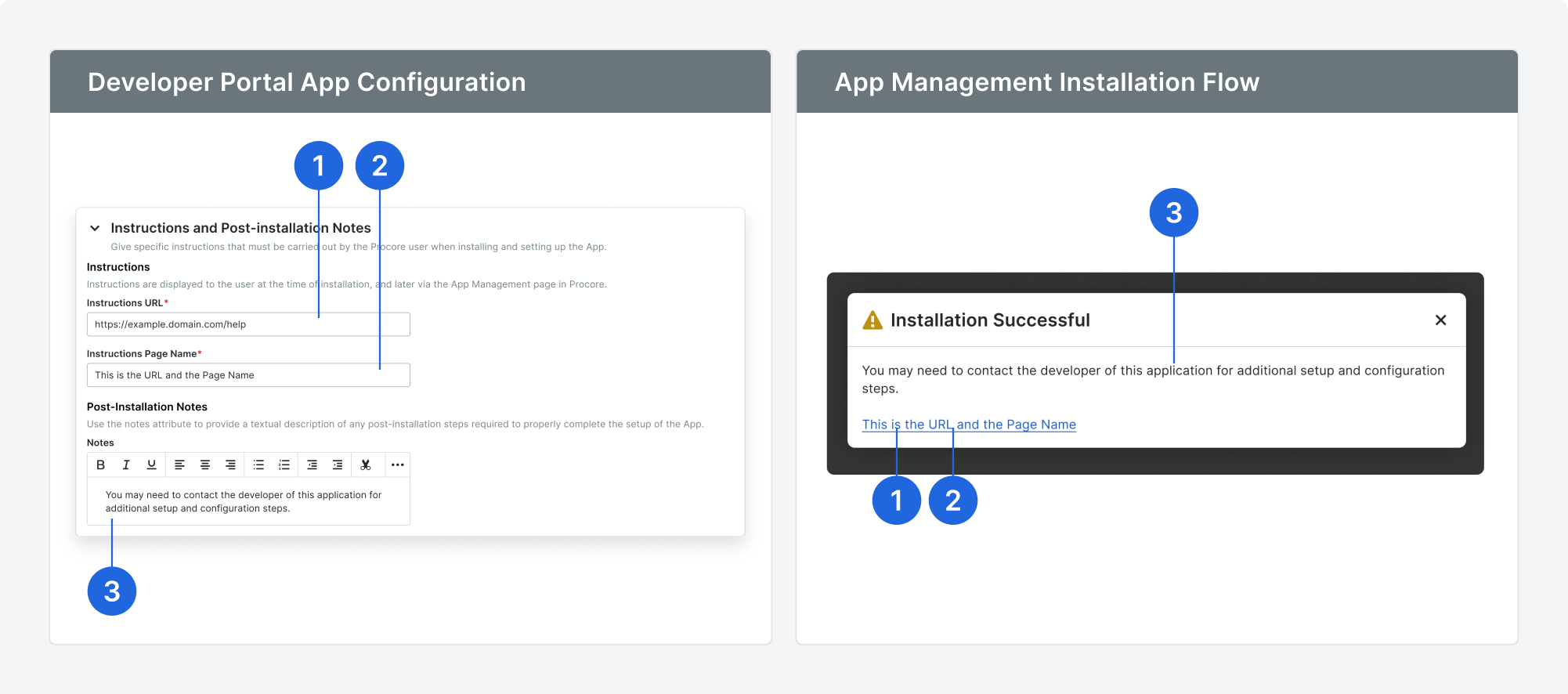
Setup instructions tell a company administrator what to do after your app is installed — sign up for an account on your platform, configure settings there, or complete an authentication step before the app works.
Company admins see them in the Installation Successful dialog, and can reopen them later from Company Admin > App Management.
On the Create Version screen, fill in the Post-Installation Instructions section:
- Setup Guide URL — a link to step-by-step setup instructions on your own website.
- Setup Guide URL Label — the text shown for that link.
- Post-Installation Notes — the steps a company admin needs to complete, in your product or in Procore.
Add a setup guide and notes together, or leave both blank. Anything a customer must do before your app works belongs here, because it is the only guidance shown at the moment they finish installing.
Save, Test, and Promote
- Return to the Create Version screen and select Save Version. Saving creates a Sandbox Version with its own Installation Key.
- Install the version in your Developer Sandbox and confirm your API calls succeed with the permissions you declared. See Install a Version in Your Developer Sandbox.
- Promote the version. See Promote a Version to Production.
See Also
- API Usage Guidelines — rate limits, permitted usage, and when to use REST versus Agentic APIs.
- Choose an Authentication Method — how the two grants layer, and which one a given call should use.
- Developer Managed Service Accounts (DMSA) — set up Service Account authentication.
- Choose an App Type — how Data Connector fits among the capabilities.