OAuth 2.0 Authorization Code Grant Flow
Implement the Authorization Code grant for web apps and installed apps.
Overview
Before you begin. Confirm the Authorization Code grant fits your use case before you implement it. See Choose an Authentication Method and Authentication Endpoints.
The Authorization Code grant lets your app call Procore as a specific user. The user signs in to Procore and approves your app. Procore then sends your app a one-time code, and your server trades it for an access token.
This page covers the standard web flow first. Headless tools that act for one user use the Installed-App Variant.
The examples use production URLs. Sandboxes have their own URLs and credentials, and tokens don’t carry over between environments. See Procore Sandboxes.
How It Works
The numbers match the steps on this page.
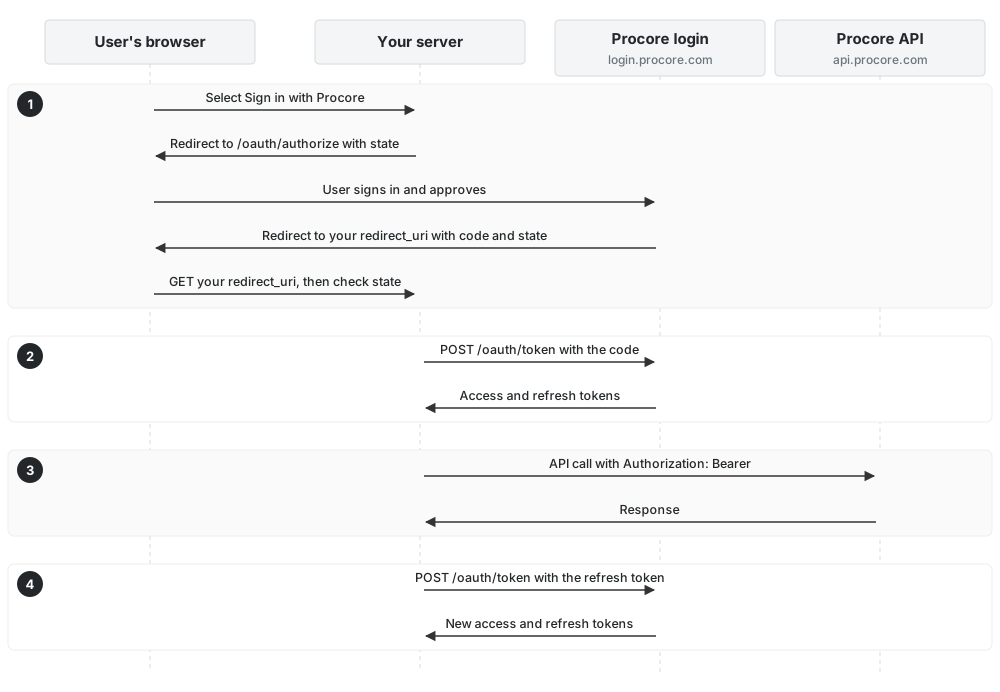
1. Send the User to Procore
Send the user’s browser to the authorize endpoint:
GET https://login.procore.com/oauth/authorize?
  client_id=<CLIENT_ID>
  &response_type=code
  &redirect_uri=<REDIRECT_URI>
  &state=<STATE>
<CLIENT_ID>is your app’s Client ID, from the Credentials tab.<REDIRECT_URI>is a redirect URI registered on the Credentials tab.<STATE>is a random value you generate and store in the user’s session. It protects against cross-site request forgery (CSRF).
The user signs in and approves your app. Procore then redirects to your redirect URI with code and state in the query string. The code works once and expires in 10 minutes.
Check that the returned state matches the value you stored, then delete the stored value. If they don’t match, the request didn’t start from your app, so stop. Procore doesn’t require state, but always send it.
Keep the user on your page. If your app runs inside Procore, or shouldn’t navigate away, open the authorize URL in a pop-up window. See Open Procore Sign-In in a Pop-Up.
2. Exchange the Code for Tokens
From your server, POST the code to /oauth/token. Never send this request from the browser, because it includes your Client Secret.
curl -F grant_type=authorization_code \
     -F client_id=<CLIENT_ID> \
     -F client_secret=<CLIENT_SECRET> \
     -F code=<AUTHORIZATION_CODE> \
     -F redirect_uri=<REDIRECT_URI> \
     -X POST https://login.procore.com/oauth/token
A successful response returns an access token and a refresh token:
{
  "access_token": "eyJ0eXAiOiJKV1QiLCJhbGciOiJFUzUxMiJ9...",
  "token_type": "bearer",
  "expires_in": 5400,
  "refresh_token": "76ba4c5c75c96f608...",
  "created_at": 1484786897
}
Store the refresh token securely. You need it to get new access tokens.
3. Call the Procore API
Send the access token in the Authorization header on every API call:
curl -H "Authorization: Bearer <ACCESS_TOKEN>" \
     -X GET https://api.procore.com/rest/v1.0/me
4. Refresh the Access Token
The access token expires after 1.5 hours (5,400 seconds). To get a new one, POST the refresh token to /oauth/token:
curl -F grant_type=refresh_token \
     -F client_id=<CLIENT_ID> \
     -F client_secret=<CLIENT_SECRET> \
     -F refresh_token=<REFRESH_TOKEN> \
     -F redirect_uri=<REDIRECT_URI> \
     -X POST https://login.procore.com/oauth/token
Each response has a new access token and a new refresh token. The old refresh token stops working as soon as you use it, so save the new one every time.
Installed-App Variant (No Browser Redirect)
Use this variant for a headless tool, such as a command-line script, that acts as one signed-in user. For work that runs unattended for a company, such as sync jobs, use Client Credentials through a Developer Managed Service Account (DMSA) instead. See Choose an Authentication Method.
Register the Out-of-Band Redirect URI
On the Credentials tab, register this redirect URI:
urn:ietf:wg:oauth:2.0:oob
Procore then shows the authorization code on a Procore page, instead of redirecting to your app.
Have the User Open the Authorization URL
Have the user open this URL in any browser:
https://login.procore.com/oauth/authorize?
  response_type=code
  &client_id=<CLIENT_ID>
  &redirect_uri=urn:ietf:wg:oauth:2.0:oob
After the user signs in and approves your app, Procore shows the code:
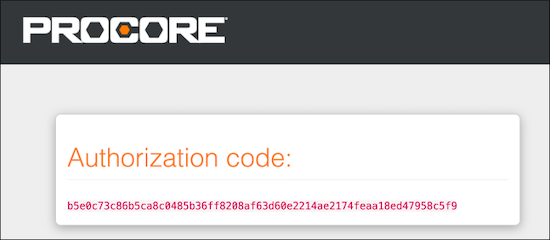
The user copies the code into your tool.
Exchange and Refresh as Usual
Steps 2 to 4 are the same, with urn:ietf:wg:oauth:2.0:oob as the redirect URI. After the one-time sign-in, your tool refreshes tokens without further user interaction. Save the new refresh token from every response.