Build an Embedded App
Build an app that runs inside Procore's UI — as a full screen workspace or a contextual side panel.
Overview
The Embedded capability runs your web app inside Procore’s UI, so users stay in the tool they’re working in. Add either or both components:
- Full Screen — fills the main content area. Users open it from the Apps menu, at Company and Project level.
- Side Panel — a 400-pixel panel on the right, attached to the Procore views you choose. Users open it from the dock on the right edge.
Call the Procore API From Your App
An Embedded component doesn’t authenticate. Procore loads your External URL in an iframe, signed in however your product signs people in.
To read or write Procore data, add a Data Connector component to the same version. A side panel already knows the company, project, record, and view it was opened on, so it can fetch that record without asking the user where they are. See Access Procore Context on this page, and Build a Data Connector App.
Create a Version and Add Components
- Open your app in the Developer Portal and select Create Version.
- Under Components, select Edit Components.
- In the Embedded group, select Full Screen, Side Panel, or both.
- Select Save.
A new version starts as a copy of your latest one, with a suggested version number you can edit. Each component appears in the Components list with a Manage button.
Manage opens the configuration form for a new component. For a component carried over from a previous version, it shows the current settings; select Edit Configuration to change them. To remove an Embedded component from the version, select the trash icon on its row.
Configure Your Full Screen Component
Select Manage on the Full Screen row, enter your External URL (for example, https://example.com/1234/12), and select Save Configuration.
Configure Your Side Panel Component
Select Manage on the Side Panel row and fill in two fields:
- External URL — your app’s address.
- Supported Side Panel Views — where users can open your panel. Views are grouped by tool, such as Commitments and RFI; expand a group to choose views.
Select Save Configuration. For every view key and URL pattern, see the Side Panel View Key Reference.
Add Dynamic URL Parameters
Both components have a Dynamic URL Parameters section that adapts your External URL to each install:
- Built-in values need no setup:
{{procore.company.id}},{{procore.company.name}},{{procore.project.id}}, and{{procore.project.name}}. - Custom parameters are values the installing administrator enters, such as a Box folder ID or a region. Define each one with Add Parameter, then use it as a token in a subdomain, path, or query value.
See URL Parameter Interpolation.
Access Procore Context Side panel apps can read the Procore context they're running in — company, project, resource, and view — using the MessageEvent interface and Window.postMessage(). Expand for the fields and setup code.
The setup message from the parent window carries:
- Company ID =
event.data.context.company_id - Project ID =
event.data.context.project_id - Resource ID =
event.data.context.id - View =
event.data.context.view
Add an event listener, then use postMessage to start communication with the parent window. The conditionals cover each Procore region; add new regions as they launch.
window.addEventListener('message', (event) => {

  const obj = event.data;
  if (obj.type === "setup") {
    const company_id = obj.context.company_id;
    const project_id = obj.context.project_id;
    const view = obj.context.view;
    const resource_id = obj.context.id;
  }
});

if (document.referrer === "https://app.procore.com/") {
  window.parent.postMessage({ type: 'initialize' }, "https://app.procore.com/");
}
if (document.referrer === "https://us02.procore.com/") {
  window.parent.postMessage({ type: 'initialize' }, "https://us02.procore.com/");
}
if (document.referrer === "https://uk01.procore.com/") {
  window.parent.postMessage({ type: 'initialize' }, "https://uk01.procore.com/");
}
Always set targetOrigin to the parent window’s exact origin.
Supported Message Events Beyond the initial setup event, Procore fires postMessage events across the side panel app's life cycle — visible, hidden, and destroy. Expand for the event types and a listener example.
After setup, Procore sends these life-cycle events to your window. Filter message events by type.
window.addEventListener('message', (event) => {
  const obj = event.data;
  if (obj.type === "sidepanel:app:visible") {
    // Do something when the app is visible.
  }
  if (obj.type === "sidepanel:app:hidden") {
    // Do something when the app is hidden but still running.
  }
  if (obj.type === "sidepanel:app:destroy") {
    // Do something when the app is about to be removed from the DOM.
  }
});
Define Setup Instructions and Post-Installation Notes
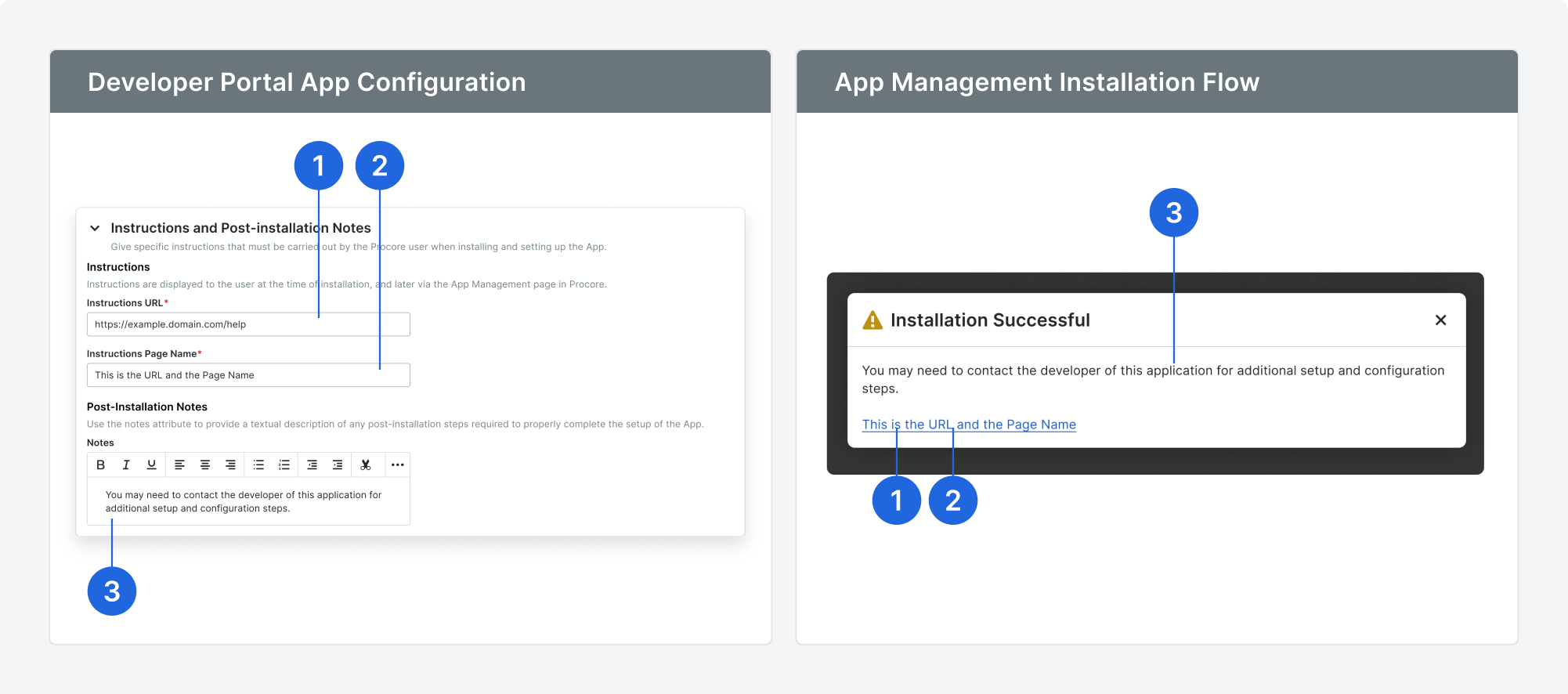
Setup instructions tell a company administrator what to do after your app is installed — sign up for an account on your platform, configure settings there, or complete an authentication step before the app works.
Company admins see them in the Installation Successful dialog, and can reopen them later from Company Admin > App Management.
On the Create Version screen, fill in the Post-Installation Instructions section:
- Setup Guide URL — a link to step-by-step setup instructions on your own website.
- Setup Guide URL Label — the text shown for that link.
- Post-Installation Notes — the steps a company admin needs to complete, in your product or in Procore.
Add a setup guide and notes together, or leave both blank. Anything a customer must do before your app works belongs here, because it is the only guidance shown at the moment they finish installing.
Save, Test, and Promote
- Return to the Create Version screen and select Save Version. Saving creates a Sandbox Version with its own Installation Key.
- Install the version in your Developer Sandbox and confirm your app renders in each placement you declared. See Install a Version in Your Developer Sandbox.
- Promote the version. See Promote a Version to Production.
See Also
- Side Panel View Key Reference — the tools and views a side panel app can attach to.
- URL Parameter Interpolation — pass company, project, and install values into your URL.
- Choose an App Type — how Embedded fits among the capabilities.