URL Parameter Interpolation
Overview
URL Parameter Interpolation makes your app’s External URL adapt to each install — inserting dynamic, context-specific values instead of hardcoding them. This is how an embedded app responds to the current company or project and to setup values the installing admin provides.
There are two kinds of values you can interpolate:
- Built-in Procore values — provided automatically by Procore. Just add them to your URL; there’s nothing to define.
- Custom parameters — values you define, which the admin installing your app enters during setup (for example, a Box folder ID).
Where Interpolation Works
You can interpolate values in these parts of a component’s URL in the Developer Portal:
- Subdomain
- Path parameters
- Query parameters
This is most common in HTTP GET requests, where data is passed in the URL.
Built-in Procore Values
These variables are supplied automatically — add them to your URL and Procore fills in the value at runtime. No setup required.
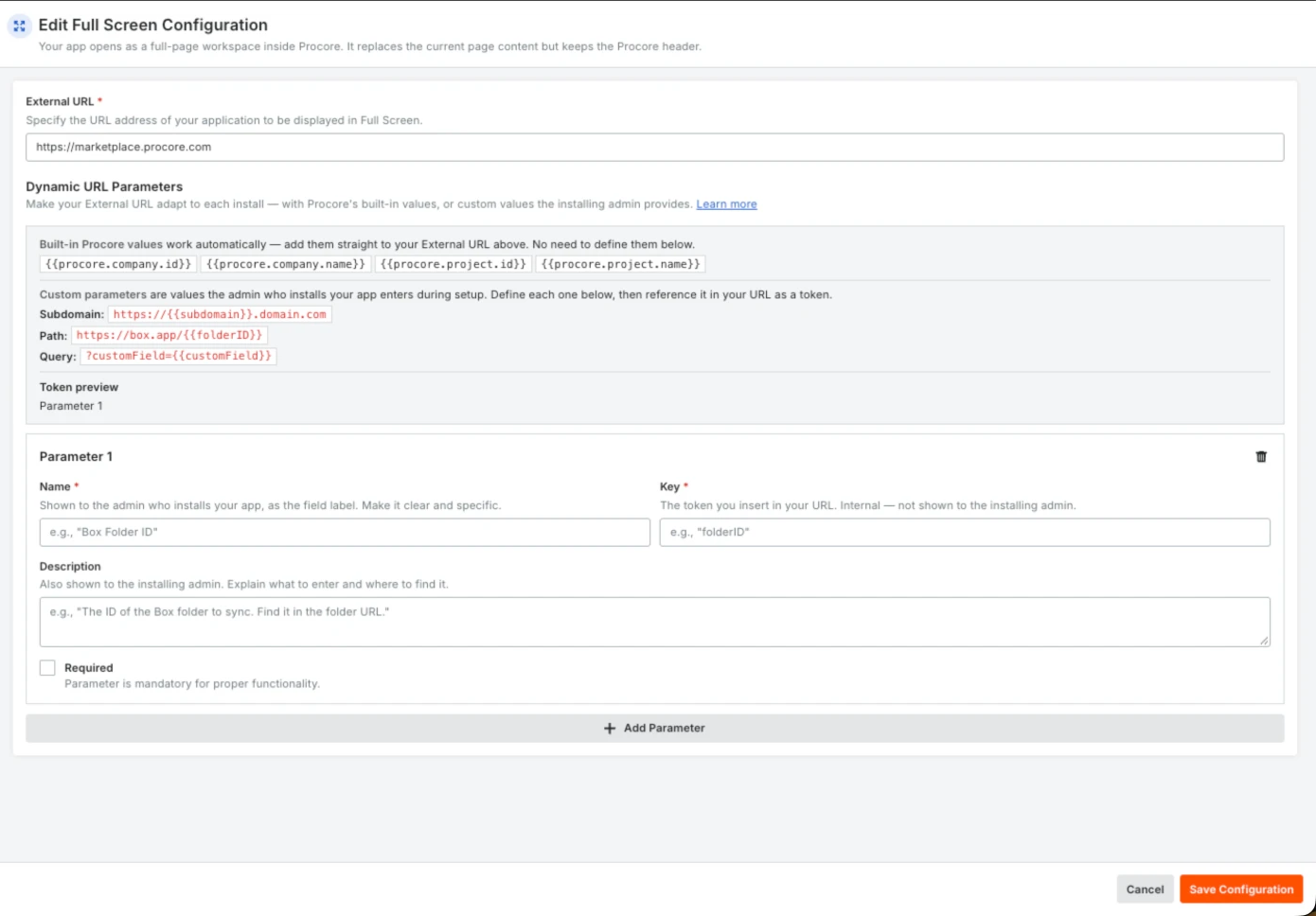
procore.company.id– ID of the company where the app is installedprocore.company.name– Name of that companyprocore.project.id– ID of the project where the app is usedprocore.project.name– Name of that project
Why use them? They save time and prevent mistakes. For example, use procore.project.id to fetch project-specific data from your system without asking the user to enter it.
Custom Parameters
Custom keys are your own namespace. A custom parameter’s key is a name you choose — it is not part of the
procore.*built-in set. For instance, a custom{{project_id}}you define is a separate value from the built-in{{procore.project.id}}. To avoid confusion, don’t reuseprocore.-style names for custom keys.
Custom parameters are values the installing admin enters during setup. You define each one in your component, then reference it in your URL as a token. They can be required or optional, and are useful for things like a Box folder ID, a device ID (drone, camera), a subscription or user ID, or a region/locale.
Interpolation Examples
Subdomain — pass a value into the subdomain dynamically.
https://{{subdomain}}.domain.com
Path parameters — insert dynamic values directly into the path (built-in or custom).
https://box.app/{{folderID}}
Query parameters — send Procore context and custom values as query string values.
?companyId={{procore.company.id}}&projectId={{procore.project.id}}&customField={{CustomField}}
How to Add Custom URL Parameters
Custom parameters are defined on the component itself. In the Components list on your app version, select Manage on the component, then find the Dynamic URL Parameters section.
- Select Add Parameter.
- Enter a Name — the field label shown to the administrator who installs your app. Make it clear and specific.
- Enter a Key — the token you insert in your External URL. This is internal and is never shown to the installing administrator.
- Optionally add a Description, also shown to the administrator. Explain what to enter and where to find it.
- Select Required when your app cannot function without the value.
- Select Add Parameter again for each additional value, then save the component with Save Configuration.
Reference a custom parameter in your External URL as a token, the same way you use a built-in value — so your app delivers the right data in the right context.