Marketplace Listing Guidelines
Write a Marketplace listing that passes review and shows customers what each capability of your app does.
Overview
Your listing is what customers read before they install your app. You build it on the Marketplace Listing tab of your app in the Developer Portal, in six steps: App Information, Functionality, Pricing & Requirements, Security, Support, and Submit for Review.
The Portal shows and enforces field limits as you fill in the form. This page covers what it can’t check. The Marketplace team reviews every listing by hand and rejects listings that don’t follow these guidelines.
Before you begin. Complete Technology Partner contracting, and promote the version you want to list. Only production versions can be published. See Promote a Version to Production.
App Information
Name
Make the name clear, unique and easy to search for, in 50 characters or fewer. It must not:
- Include the word Procore, special characters or emojis.
- Match another app on the Marketplace.
- Infringe another product’s trademark or copyright.
Procore makes the final call on whether a name is acceptable.
| Approved | Rejected |
|---|---|
| QuickBooks Connector by ISV Developer | ISV Developer QuickBooks Connector |
| Meeting Tracker | Meeting Tracker for Procore |
| Task Tracker Enhanced | Procore integration with Task Tracker |
| QuickBooks Online Connector | QuickBooks Online |
Tagline
The tagline appears in search results and on app cards. Summarize the value in one phrase, starting with a verb such as add, check or sync.
App Summary
Say what problem your app solves and what customers get. If your app connects to another service, explain that service in a sentence for customers who don’t know it. Don’t stuff the summary with keywords. Describe each capability under Functionality, not here.
Marketplace Engagement
These settings control the two buttons at the top of your listing.
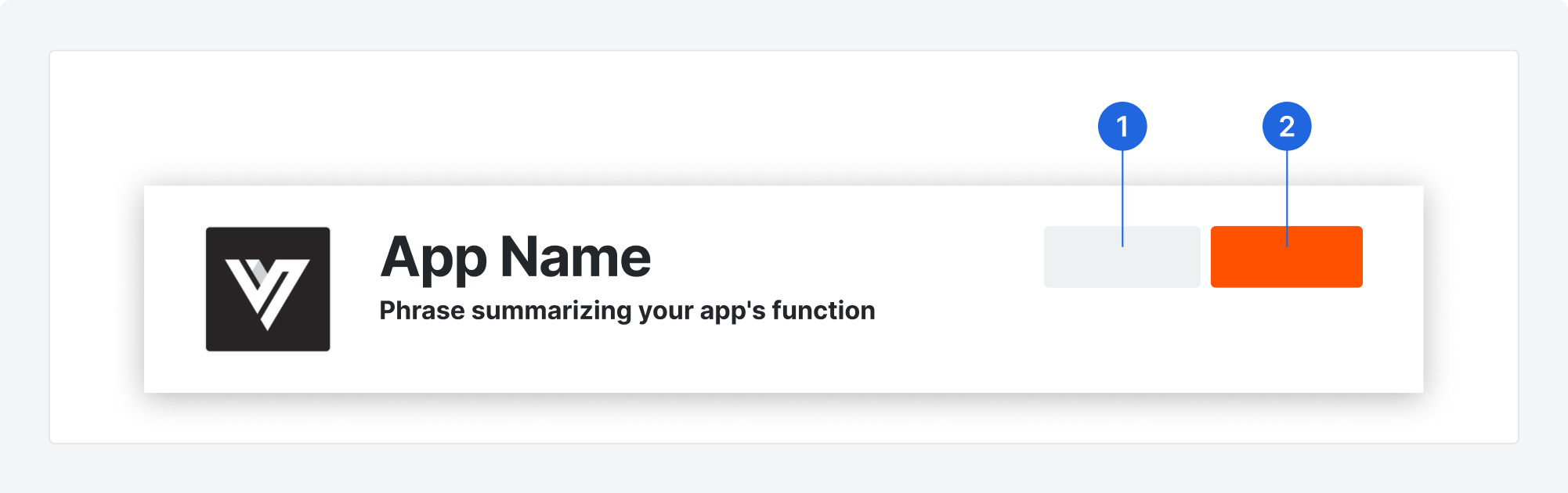
- Contact button. Under Type of Button, choose Contact Us to send a lead form to your sales email, or Learn How to link to your own page that explains how to buy or install your app.
- Install button. Turn on Marketplace Installations to show it. Leave it on unless your app needs significant setup or training first. With installations off, customers contact you, and you give them a Production Installation Key to install the app as a custom app.
Media
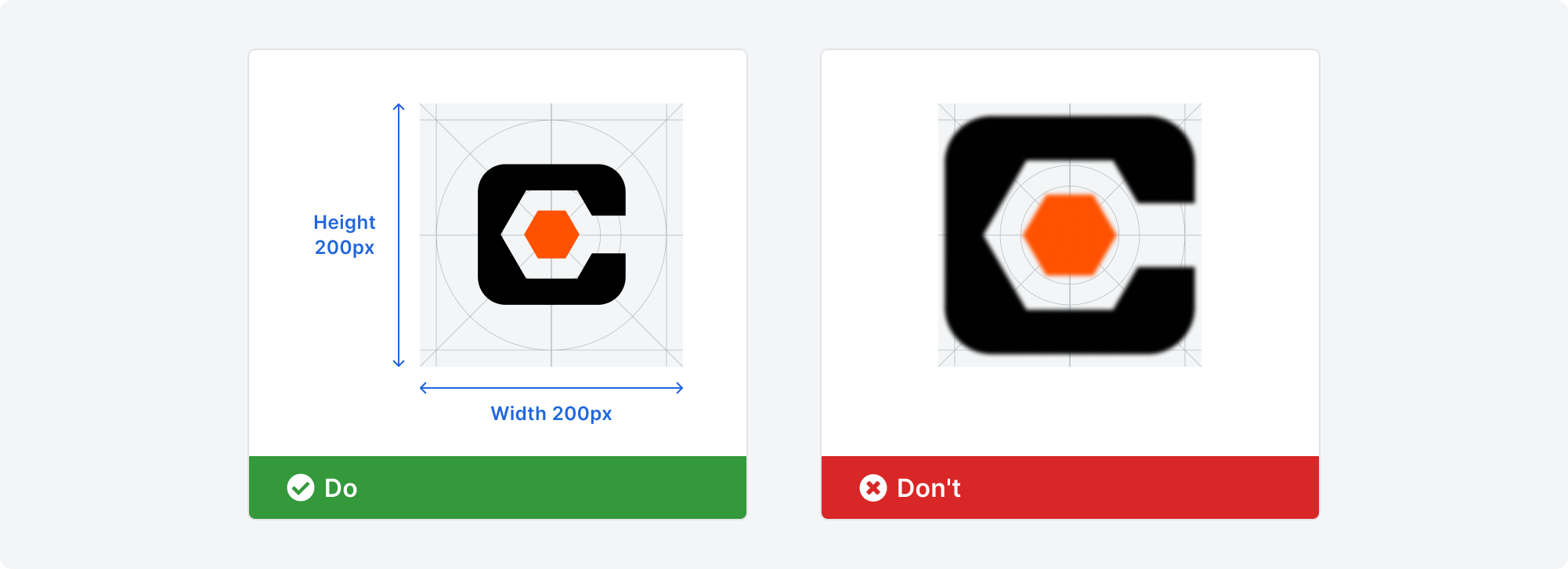
Logo. Use a sharp, distinct image that doesn’t resemble Procore’s logo or another app’s. Don’t use third-party trademarks you aren’t licensed to use.
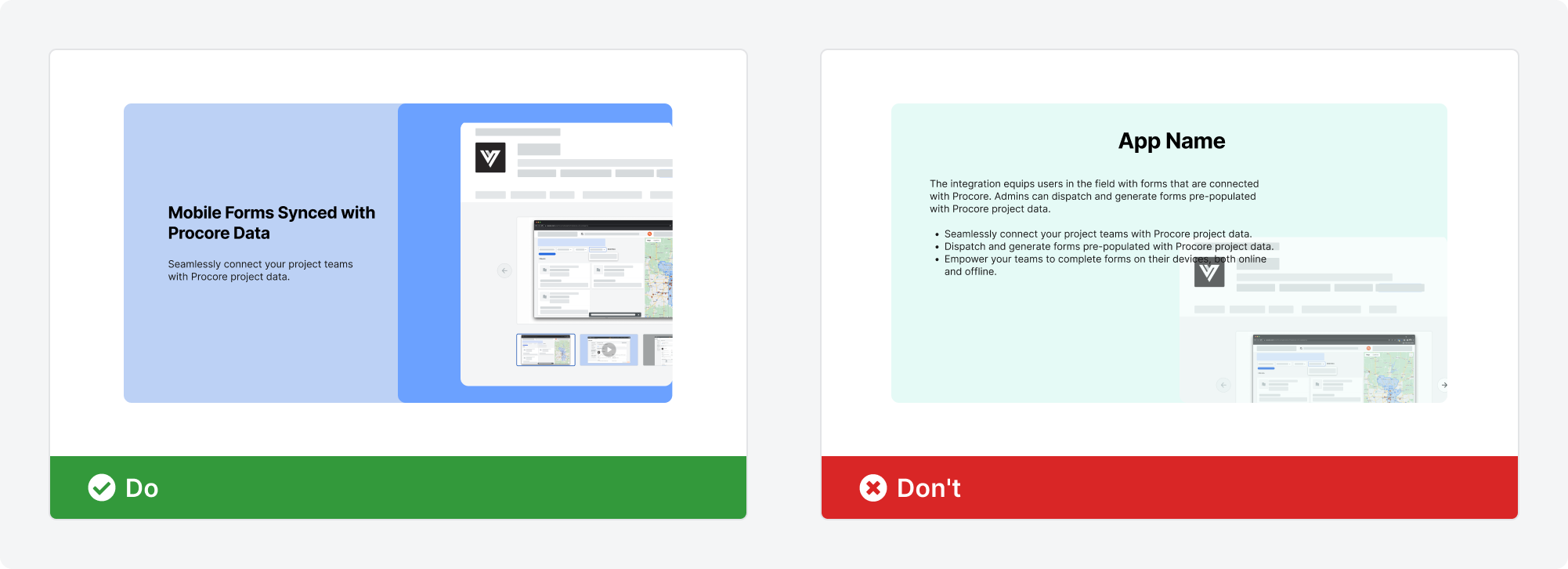
Screenshots. Give each image one value, with short text in the image that explains it. Show your app working in Procore.
Video. Keep it to 30–90 seconds. Show the workflows your app improves in Procore, on your current version.
App Availability
Select the regions or countries where customers can use your app.
Functionality
Select the Release Version to publish. This is the version customers install from the Marketplace. When you promote a newer version, edit your listing, select that version, and submit the listing for review again. Until it’s approved, customers keep installing the previous version.
The step then shows one group for each capability in that version: Agentic, Data Connector and Embedded. Each group lists the version’s components, such as MCPs or Side Panel, and these appear on your listing.
Every capability group needs a Description and three Key Features. Describe what that capability does for the customer, not how it’s built. Start each feature with a verb and name a concrete result, not “improves productivity.”
Agentic
Describe the questions customers can ask Procore AI with your app connected, and any changes your Agents propose. Name the systems involved, such as “your Procore commitments and the lien waivers in your document system.”
The Agentic group also has two fields for the MCPs component:
- MCP Details URL is required. It links to a page about your MCP server and its tools, and appears as the View More Details button on your listing.
- External MCP Tools are optional. Feature up to three example tools your MCP server supports, 35 characters or fewer each. Enter each name exactly as your server exposes it, such as
list_permitsordecide_approval, not a description. Your listing shows them as examples under MCP tools.
The Agentic capability is in closed beta. See Build an Agentic App.
Data Connector
Select the Compatible Procore Tools your Data Connector reads or writes, such as Documents or RFIs. Customers use this list to check fit.
To leave the Data Connector off your published listing, turn its switch to Disabled. Your entries are kept.
Embedded
Describe what customers see and do in the Side Panel or Full Screen view.
Pricing & Requirements
Enter About Your Company, Sold By and a Pricing Description. External Pricing URL is optional. Then answer three questions that appear on your listing:
- Additional subscription. Does the customer need a subscription to another system, such as your own product?
- Third-party connector. Does the customer need to buy a separate connector, such as a middleware service?
- Free trial. Is one available?
Under Requirements, list everything a customer needs before your app works. For example, list an active account with your product or a specific Procore permission. If your app has the Agentic capability, list Procore AI Pro or Enterprise, which Agentic requires.
Security
Answer the Partner Security Review questions about your company, data handling and security practices. Your answers are published as self-certified responses in the Security & compliance section of your listing. See What Is the Security and Trust Self-Certified Badge on an App in Procore’s App Marketplace?
Support
Enter a support Email and a Support Website Label and URL. Your support website must explain what your app does and how it works with Procore. It must also include usage instructions and an English privacy policy that covers third-party data use.
You can add up to three Helpful Links, such as your setup guide.
Submit for Review
This step goes to the Marketplace team only. It isn’t published.
- Notes is required. Include anything the reviewer needs, such as setup steps.
- Showcase Video is required. Demo your app and its use cases.
Select Submit for Review. You get an email when the review is complete.
See Also
- Marketplace Approval Checklist
- Technology Partner Overview
- Build an Agentic App
- Build a Data Connector App
- Build an Embedded App
Developer Policies
By distributing your application through the Procore App Marketplace, you agree to abide by the following policies, and terms.
Updates to Guidelines and Enforcement
Procore Technologies reserves the right to revise the Developer Documentation at any time. We may remove or decline to publish any Marketplace listing at our discretion.