Promote a Version to Production
Promote a sandbox version to production, and see how customers get the update.
Overview
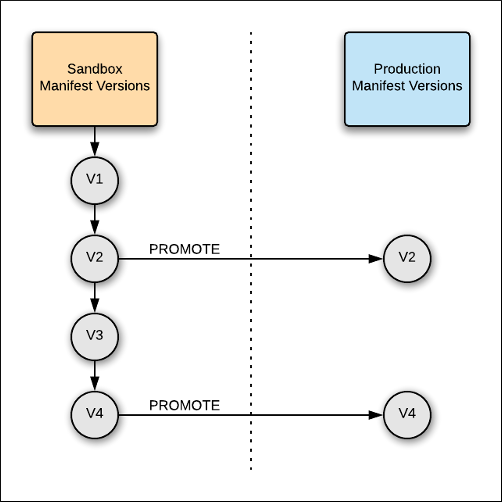
Every new version starts in sandbox. When it’s ready, promote it to production so customers can install it or update to it. Promotion can’t be undone.
Version Numbers and Version Notes
When you create a version, Procore suggests the next version number, and you can edit it. Follow Semantic Versioning: X.Y.Z — bump X for breaking changes, Y for backward-compatible features, and Z for fixes. A version keeps its number when you promote it, so 4.5.0 in sandbox becomes 4.5.0 in production.
Version Notes are required when you promote. Company admins see them when they update your app, and for a Marketplace app they also appear on your listing. Say what changed, and anything the admin needs to do.
View the promotion flow diagram
Promote to Production
Before you can promote to production, your organization must be verified. If you see a Become a Verified Developer prompt instead of production options, complete the verification process first. See Verification & Production Access.
Promote to Production appears on the Sandbox Version card when that version is newer than your production version.
- Open your app and go to the App Details & Versions tab.
- On the Sandbox Version card, select Promote to Production.
- Review the change preview. It’s what customers see in App Management, including any components added or removed.
- Enter Version Notes.
- Select the Confirm Update Changes checkbox.
- Select Promote Version.
If the version carries a Data Connector, promoting it also populates your production credentials. See OAuth Credentials Management.
How Customers Get the Update
Procore notifies customers when an update is available. Company admins see an Update Available badge in App Management.
- For custom apps, update notifications go out automatically after promotion.
- For Marketplace apps, Procore approves the update before notifications go out.
