Choose an App Type
Choose the right app type for your integration.
Overview
Procore apps are built from three families of capabilities — Agentic, Data Connector, and Embedded. One app can carry any mix of them, so a customer installs one app and gets everything it offers.
Each capability works on its own. Whether and how your app calls the Procore REST API is a separate decision. See Choose an Authentication Method.
Agentic Apps
The Agentic capability is in closed beta. It’s available to Marketplace Partners and enabled per app. Contact the Marketplace team at [email protected] to request access for an app.
What it is
Lets Procore AI reach out to your external system. Procore AI is powered by Datagrid, a Procore Company.
Components
- MCPs — an external Model Context Protocol (MCP) server you host, so users and Agents can query your data alongside their Procore data.
- Agents — an Agent in Procore AI that works across Procore data and your Tools, and proposes changes for the customer to approve.
When to use
- Procore AI should draw on your data when a customer asks it a question.
- An Agent should propose changes in Procore, such as updating an RFI or drafting a Submittal.
- You want to manage your Agent and MCP server declarations in one place for every customer who installs your app.
Before you choose
- Customers need Procore AI Pro or Enterprise to use Agentic. Without it, the rest of your app still works.
- Procore AI is not available in the Developer Sandbox, so Agentic can’t be tested there.
For the opposite direction, where your own product calls in to Procore AI, see Agentic APIs.
See Build an Agentic App.
Data Connector Apps
What it is
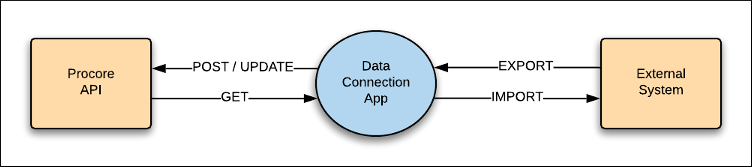
Moves data between Procore and an external system — accounting, ERP, document management — through the Procore REST API. The work runs on your infrastructure and your schedule.
Components
- User Level Authentication — acts as a signed-in user, limited to that user’s permissions. Every Data Connector starts here.
- Service Account Authentication — acts on its own through a Developer Managed Service Account (DMSA), with permissions a company administrator approves at install. It’s added on top of User Level Authentication, never alone.
When to use
- You sync data between Procore and another system.
- The work runs on a schedule or reacts to webhooks, not when someone is looking at a screen.
- Another capability in your app needs Procore data.
Before you choose
- Adding a Data Connector generates your OAuth credentials. See OAuth Credentials Management.
- A Data Connector carried over from a previous version can’t be removed.
For batch writes, see Using Sync Actions. For change events, see How Webhooks Work.
See Build a Data Connector App.
Embedded Apps
What it is
Runs your web app inside Procore’s UI, in an iframe, so users don’t leave the tool they’re in.
Components
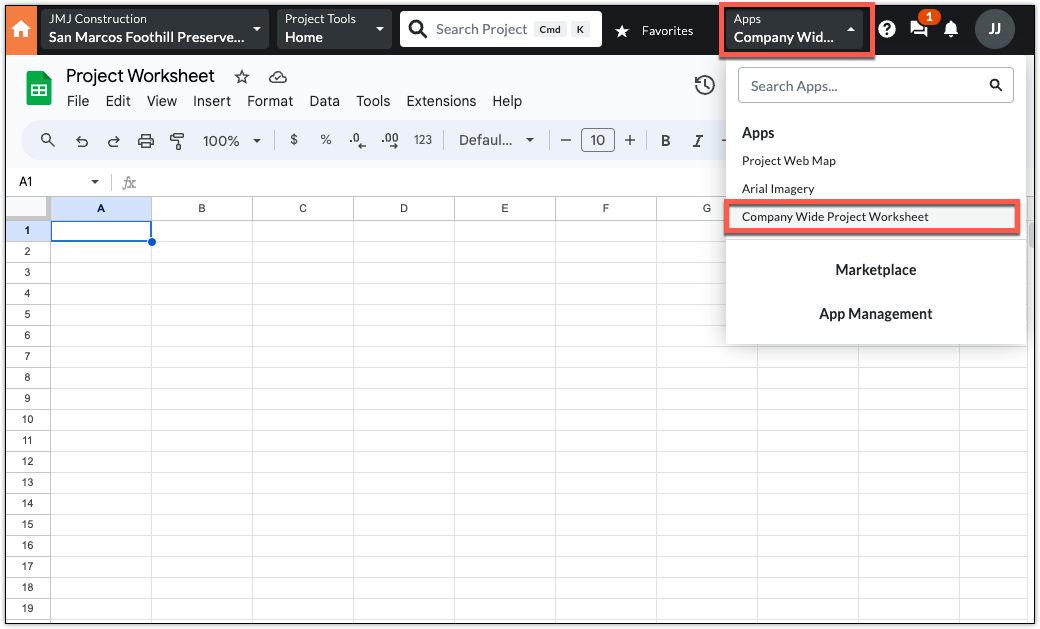
- Full Screen — fills the main content area. Users open it from the Apps menu, at Company and Project level.
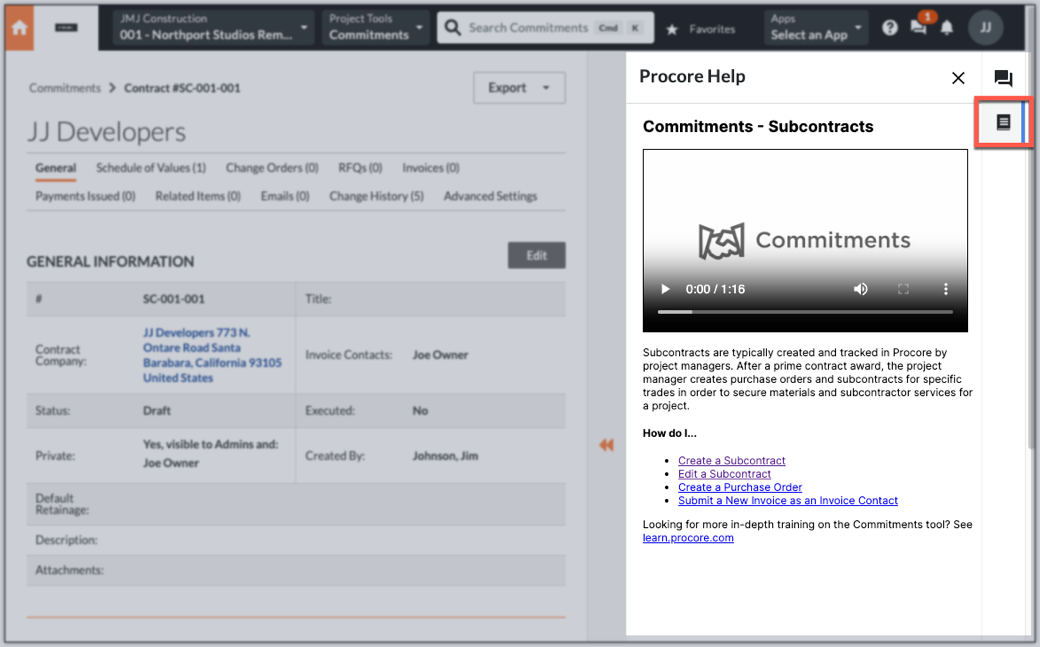
- Side Panel — a 400-pixel panel on the right, attached to the Procore views you choose. Users open it from the dock on the right edge.
The Procore Integration for Google Sheets™ as a Full Screen app:
A contextual help Side Panel next to a Commitments record:
When to use
- Users should act on your data without leaving Procore.
- Your app’s value is its interface, not background data movement.
- The experience should follow context — the project, tool, and record in view.
Before you choose
- Embedded components don’t authenticate. The iframe loads your app, signed in however your product signs people in.
- To read or write Procore data, add a Data Connector. A side panel knows which record it’s on; the Data Connector fetches the detail.
Use Dynamic URL Parameters to adapt your URL to each install. See URL Parameter Interpolation.
See Also
- Build an Agentic App
- Build a Data Connector App
- Build an Embedded App
- Choose an Authentication Method